
- How to Set Up Database Addon For WPForms
How to Set Up Database Addon For WPForms #
In this article, we’ll explain how to set up the WPForms Database Addon from Ultra Addons for WPForms — allowing you to view and manage all your WPForms submissions directly inside your WordPress dashboard.
What’s Needed #
Before starting, make sure:
- You have both WPForms and Ultra Addons for WPForms installed and activated on your WordPress site.
- Navigate to Ultra Addons → Modules in your WordPress Dashboard and enable the “Database” toggle.
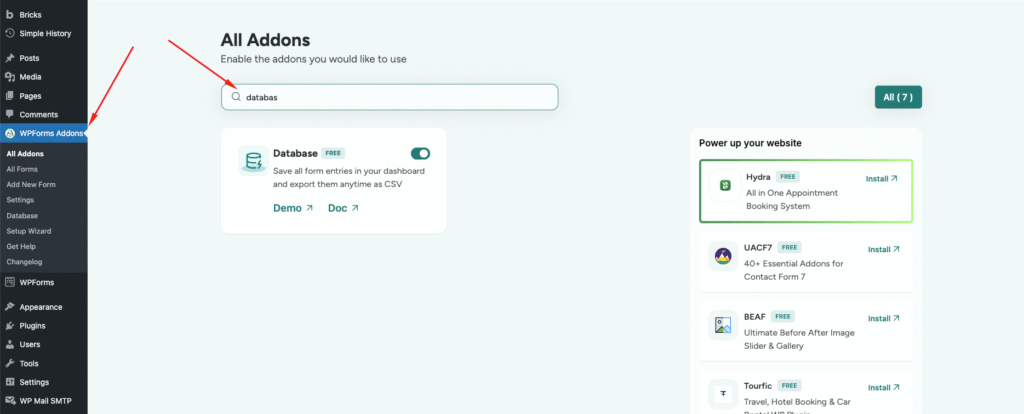
WPForms Save to Database – Live Example #
In this tutorial, we’ll walk through a step-by-step guide on how to view WPForms submissions that are saved in your WordPress database.
Visit our main demo to see all supported fields and how the Database Addon For WPForms works in action.
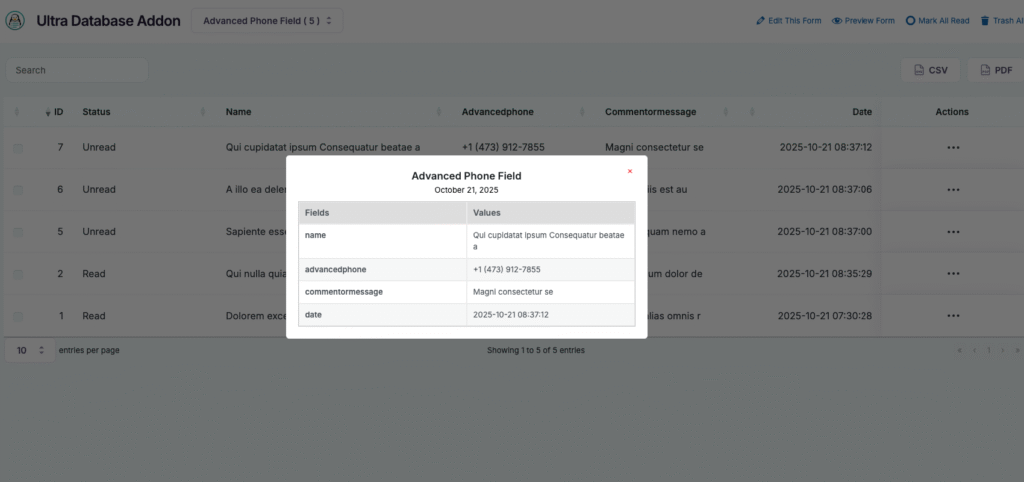
What is the Database Addon For WPForms ? #
The Database Addon For WPForms is a feature of Ultra Addons for WPForms that automatically saves all form submissions directly to your WordPress database.
Instead of relying only on email notifications, this addon securely stores every entry inside your website — ensuring that you never lose important submissions.
From your dashboard, you can easily view, manage, delete, or export the stored data (for example, in CSV format) — all from one convenient place.
Setting Up the WPForms Database Addon #
1. Activate the Database Addon #
Once you’ve enabled the Database module from Ultra Addons, it will automatically begin storing all new form submissions from your WPForms forms.
⚠️ Note: The addon won’t display any entries submitted before activation. Only new submissions will be stored in your database.
2. View Form Submissions #
To view saved form data:
- Go to Ultra Addons → Database in your WordPress Dashboard.
- Choose your desired form from the dropdown menu.
- Click the Submit button to load all recent submissions for that form.
You’ll now see all saved entries neatly organized with details like date, form name, and field values.
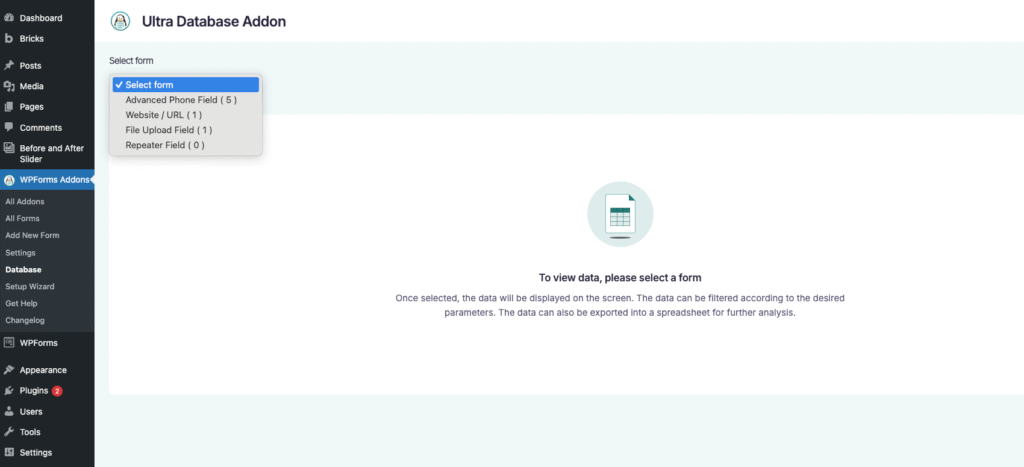
3. Manage Submissions #
From the database entries page, you can:
- View: Click the “View” button to see detailed submission data for each entry.
- Delete: Remove unwanted submissions with a single click.
- Export: Export data to a CSV file for reporting, backup, or analysis.
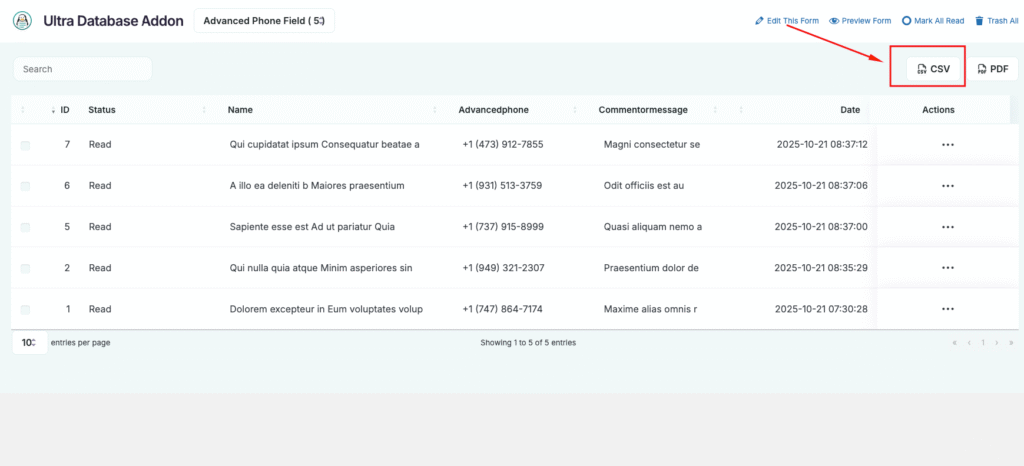
WPForms Database Addon – Example View #
You can visit our live demo to see how data is displayed within the admin panel — including the list of saved entries, view details page, and export options.
Why Use the WPForms Database Addon? #
- Never lose submissions due to email delivery issues.
- Manage and organize form data directly inside your WordPress dashboard.
- Export entries anytime for offline use or reporting.
- Works seamlessly with all WPForms fields and Ultra Addons modules.
Watch Complete Video Tutorial #
🎥 Coming soon: Watch our full video walkthrough on how to set up and use the WPForms Database Addon step by step.
Looking for More Advanced Options? #
Upgrade to Database Pro Addon (coming soon) to unlock features like:
- Advanced filtering and sorting
- Direct email replies to submissions
- Multiple export formats (CSV, Excel, JSON)
- Bulk management tools
Need Help? #
Still not clear? We’re here to help.
- Free Users: Open a support ticket here
