
Quick Video #
Overview #
The Geo Location Addon enhances WPForms by automatically detecting the visitor’s geographic location during form submission.
With this feature you can:
- Automatically capture user location
- Collect country, city, region, and coordinates
- Improve lead tracking
- Reduce manual input errors
- Gain geographic insights from submissions
Requirements #
Before using the Geo Location feature, make sure you have:
- WordPress installed
- WPForms plugin installed and activated
- Ultra Addons for WPForms installed
- Geo Location feature enabled
- An active Pro license
Step 1: Install Ultra Addons for WPForms #
- Log in to your WordPress dashboard.
- Go to Plugins → Add New.
- Upload the Ultra Addons for WPForms plugin.
- Click Install Now and then Activate.
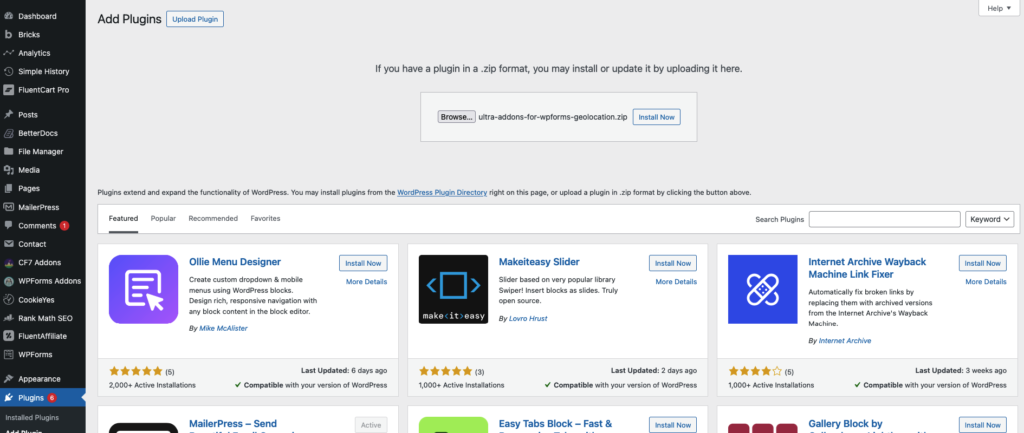
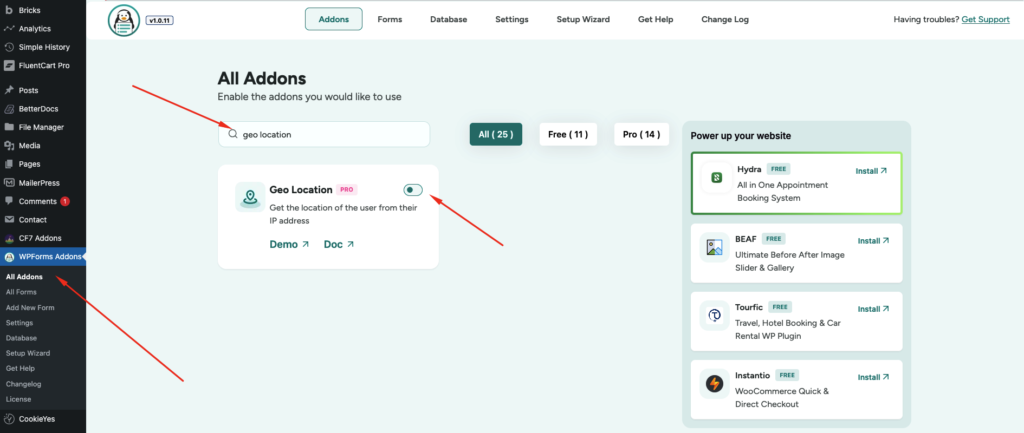
Step 2: Enable Geo Location Feature #
- Navigate to Ultra Addons → Addons.
- Find Geo Location (Pro Feature).
- Click Enable.
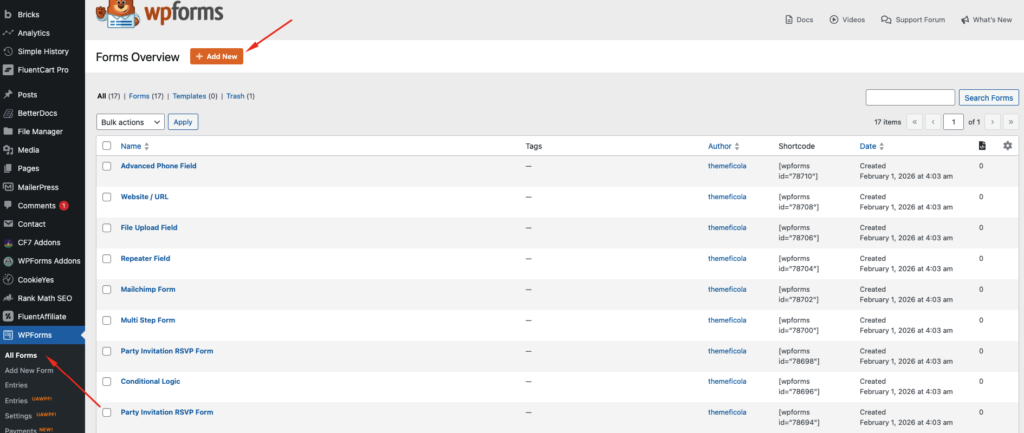
Step 3: Create or Edit a WPForms Form #
- Go to WPForms → All Forms.
- Click Add New or Edit an existing form.
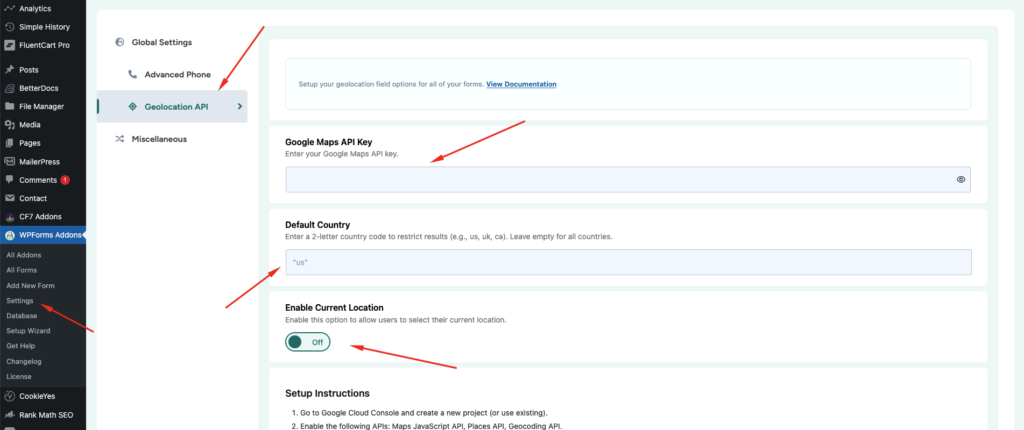
Step 4: Configure Geo Location Global Settings #
To configure the global settings:
- Go to WPForms Addons → Settings.
- Click Geolocation API.
Here you can configure the API key and default behavior for all forms.
Google Maps API Key #
Enter your Google Maps API Key in this field.
This key enables the plugin to use Google services such as:
- Maps JavaScript API
- Places API
- Geocoding API
Without the API key, location features will not function properly.
Default Country #
You can restrict address suggestions to a specific country.
Example:
us
This will limit autocomplete suggestions to United States addresses.
You can leave the field empty to allow all countries.
Enable Current Location #
This option allows users to select their current GPS location.
When enabled, users will see a Use Current Location button inside the address field.
This feature uses the browser’s geolocation API.
Google Maps Setup Instructions #
To generate your API key:
Step 1 #
Go to the Google Cloud Console.
Step 2 #
Create a new project or select an existing one.
Step 3 #
Enable the following APIs:
- Maps JavaScript API
- Places API
- Geocoding API
Step 4 #
Create an API Key from the Credentials section.
Step 5 #
Restrict the API key to your website domain for security.
Example restriction:
https://yourdomain.com/*
Step 6 #
Copy the API key and paste it into the Google Maps API Key field.
Step 5: Add the Geolocation Address Field #
- Go to WPForms → Add New.
- Open the form builder.
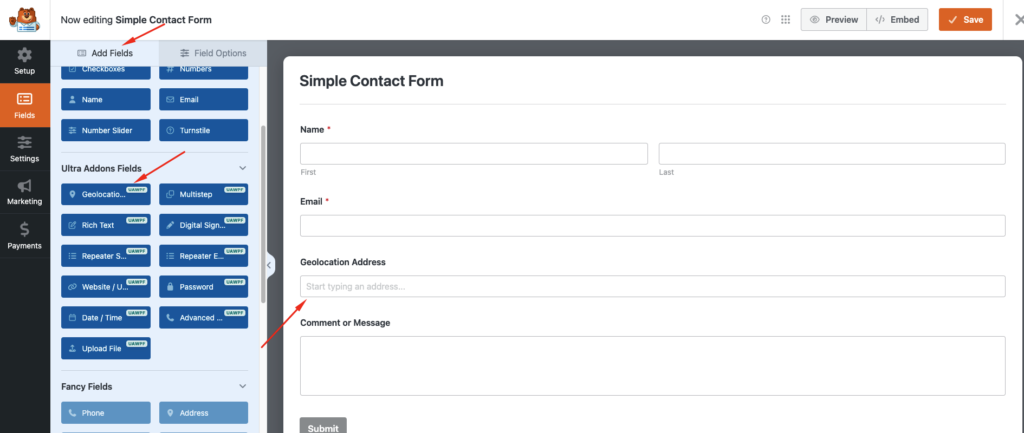
- Add the Geolocation Address Field to your form.
Geo Location Field Settings #
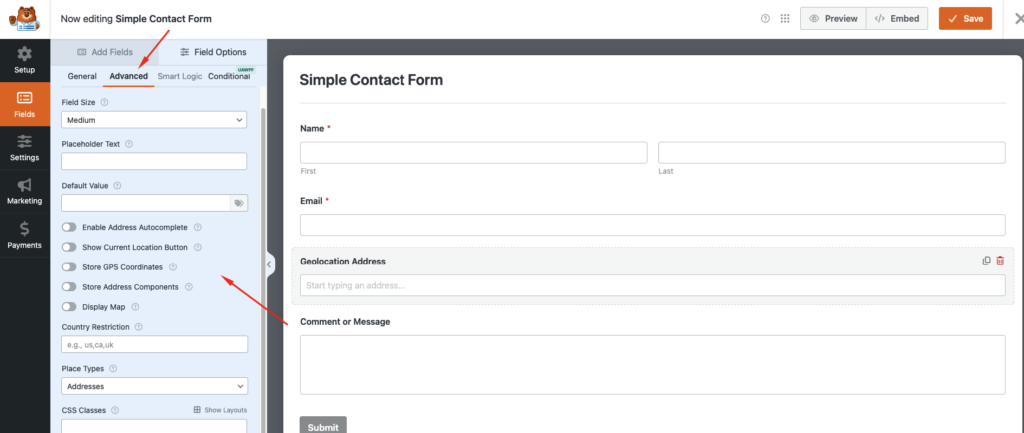
When editing the field inside the form builder, several configuration options are available.
Enable Address Autocomplete #
This feature enables Google Places autocomplete.
As users type their address, Google will display suggestions they can select.
This improves accuracy and speeds up form completion.
Show Current Location Button #
Displays a Use Current Location button that allows users to detect their location automatically.
Store GPS Coordinates #
When enabled, the form will store:
- Latitude
- Longitude
These coordinates will be saved with the form entry.
Store Address Components #
This option saves individual address elements separately.
Examples include:
- Country
- City
- State
- Postal Code
- Street Address
This makes the data easier to use in integrations.
Display Map #
When enabled, a Google Map preview appears after a location is selected.
This allows users to visually confirm their address.
Country Restriction #
You can limit suggestions to specific countries.
Example:
us,ca,uk
This will restrict suggestions to:
- United States
- Canada
- United Kingdom
Place Types #
Choose the type of places users can select.
Common options include:
- Addresses
- Establishments
- Cities
- Regions
Default option: Addresses
CSS Classes #
Add custom CSS classes for styling.
Example:
location-field
Hide Label #
Hide the field label in the frontend form.
Useful for minimal form designs.
Read-Only #
When enabled, users cannot manually edit the field.
This is useful when the location is automatically filled using GPS.
Viewing Location Data in Entries #
After form submission:
- Go to WPForms → Entries
- Select your form
- Open a submission
You will see the collected Geo Location data, including:
Location components
Address
GPS coordinates
