
Quick Video #
The Calculation Addon for Ultra Addons for WPForms lets you create dynamic calculations directly inside your WPForms. Build pricing calculators, quote generators, order forms, tax calculators, loan estimators, and more—without writing any code.
Calculations update instantly as users fill out your form, making it easy to display accurate totals and calculated values in real time.
Features #
With the Calculation Addon, you can:
- Create real-time calculations
- Build formulas using form fields
- Validate formulas before saving
- Use 40+ built-in functions
- Create conditional calculations
- Reference supported WPForms fields
- Customize decimal places, prefixes, and suffixes
- Hide empty or zero calculation results
- Access the built-in Formula Cheatsheet
Requirements #
Before getting started, make sure you have:
- WordPress installed
- WPForms Lite
- Ultra Addons for WPForms and Ultra Addons for WPForms Pro installed and activated
- An active license
Step 1: Enable the Calculation Addon #
Before using calculations, enable the addon.
- Go to WPForms Addons → All Addons.
- Open the All Addons tab.
- Search for Calculation.
- Click Enable.
Once enabled, calculation settings become available in supported fields.
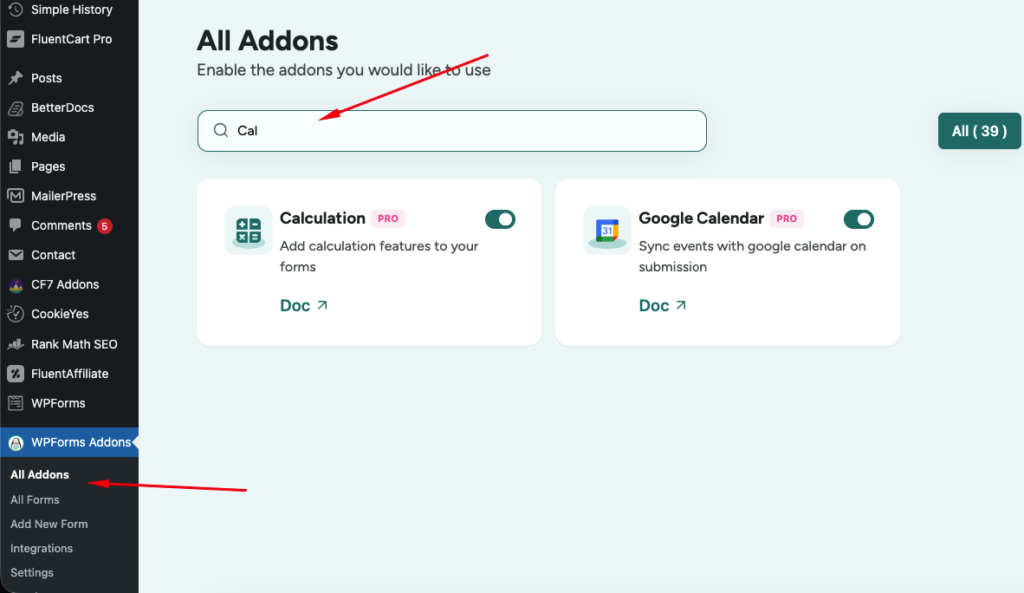
Enable the Calculation Addon.
Step 2: Create or Edit a Form #
Go to WPForms → Add New and create a new form or edit an existing one.
For this guide, create the following fields:
| Field Label | Field Type | Placeholder |
|---|---|---|
| Number of Hours | Number | e.g. 10 |
| Hourly Rate | Number | e.g. 25 |
| Additional Fee | Number | e.g. 50 |
| Tax (%) | Number | e.g. 15 |
| Total Quote | Number | Calculated automatically |
Example form with all fields.
Step 3: Enable Calculations #
Select the Total Quote field.
Open the Advanced tab and enable Ultra Addons Calculation.
This displays the calculation settings for the selected field.
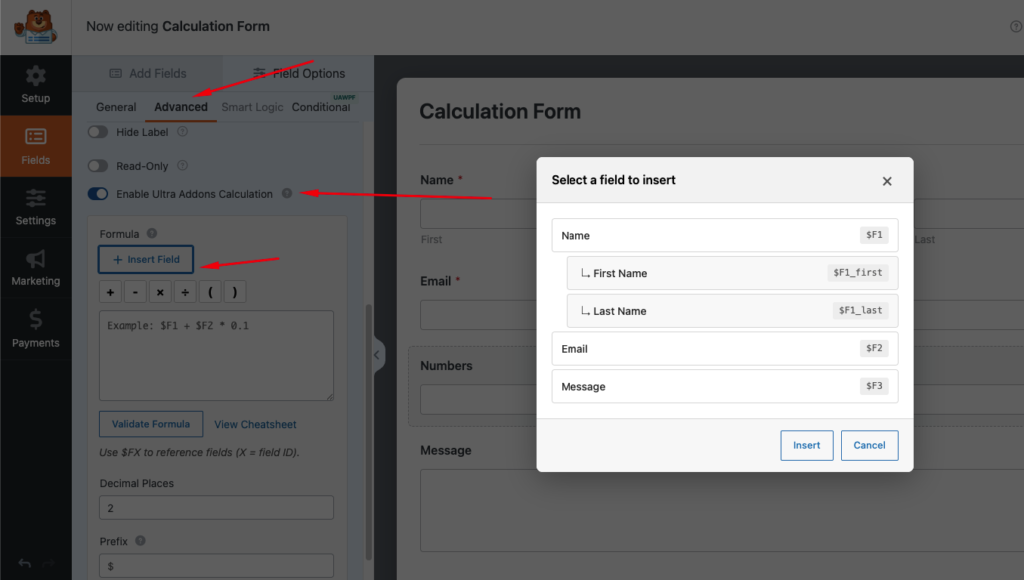
Enable Ultra Addons Calculation.
Step 4: Configure the Calculation #
Enter a Formula
In the Formula field, enter the following:
(($F16 * $F17) + $F18) * (1 + ($F19 / 100))This formula:
- Multiplies Number of Hours by Hourly Rate
- Adds the Additional Fee
- Applies the Tax (%)
- Displays the final quote automatically
You can also use:
- Insert Field to insert field variables
- Mathematical operators (
+,-,×,÷,()) - Validate Formula to check for errors
- View Cheatsheet to access available variables, operators, functions, and examples
Tip: Use
$FXto reference a field, where X is the field ID. For example,$F16references Field ID 16.
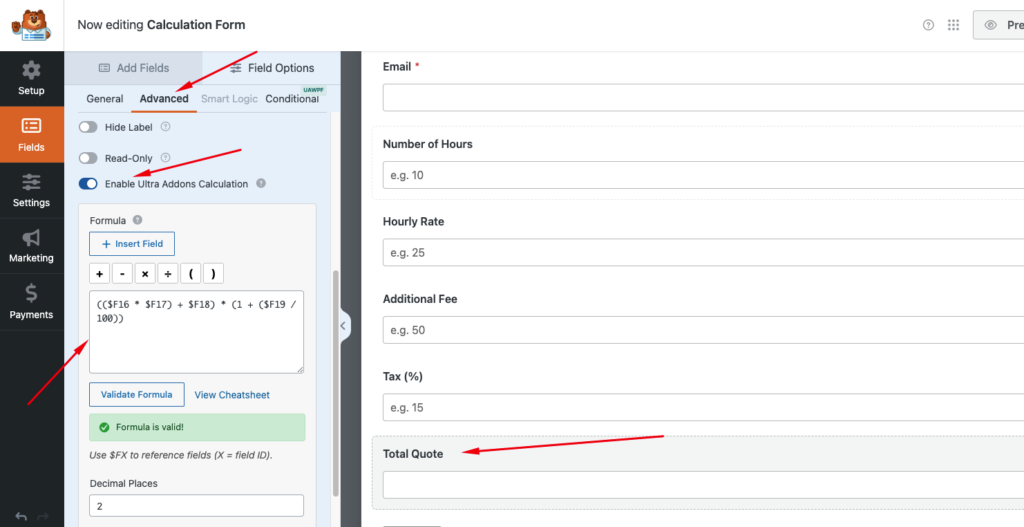
Formula Builder.
Customize the Result
The Calculation Addon lets you control how the result is displayed.
Decimal Places
Choose how many decimal places to display.
| Setting | Result |
| 0 | 345 |
| 2 | 345.00 |
| 4 | 345.0000 |
Prefix
Display text before the calculated value. Example:
$345.00
Suffix
Display text after the calculated value. Example:
345.00 USD
Hide Field if Result is Empty or Zero
Hide the field automatically when the calculated result is empty or 0.
This is useful for optional fees, discounts, or conditional calculations.
Example #
Create the following form values:
| Field | Field Variable | Value |
| Number of Hours | $F16 | 10 |
| Hourly Rate | $F17 | 25 |
| Additional Fee | $F18 | 50 |
| Tax (%) | $F19 | 15 |
Formula:
(($F16 * $F17) + $F18) * (1 + ($F19 / 100))Result:
$345.00 USD
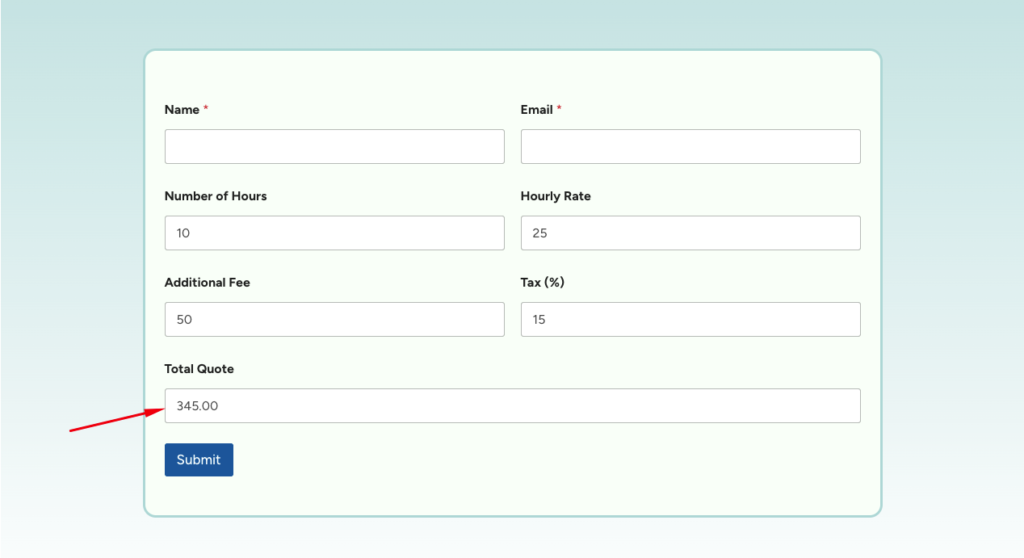
Field Variables #
Reference supported fields using their Field ID.
| Variable | Description |
$FX | Field value |
$FX_amount | Payment amount |
$FX_first | First Name |
$FX_last | Last Name |
$FX_date | Date |
$FX_time | Time |
Examples:
$F16 * $F17sum($F16, $F17, $F18)average($F16, $F17, $F18)Supported Operators #
| Operator | Description |
| + | Addition |
| – | Subtraction |
| * | Multiplication |
| / | Division |
| % | Modulus |
| () | Group calculations |
| == | Equal to |
| != | Not equal to |
| > | Greater than |
| < | Less than |
| >= | Greater than or equal |
| <= | Less than or equal |
| && | Logical AND |
| || | Logical OR |
Built-in Functions #
The Calculation Addon includes over 40 built-in functions, organized into the following categories:
Math
round() • floor() • ceil() • abs() • min() • max() • sum() • average() • pow() • sqrt() • rand()
String
concat() • length() • upper() • lower() • truncate() • number_format()
Date & Time
now() • today() • date_diff() • years() • months() • days() • age()
Utility
isnumber() • isempty() • coalesce() • ifelse()
Use View Cheatsheet in the Formula Builder to browse the complete list.
Conditional Calculations #
Create dynamic formulas using if, elseif, and else.
Example:
if ($F17 >= 50):
    0
elseif ($F17 >= 25):
    5
else:
    10
endif;
Or use the inline helper:
ifelse($F16 > 100, 20, 5)Supported Fields #
Result Fields
- Single Line Text
- Paragraph Text
- Number
- Hidden
- Single Item (Payment)
Fields You Can Reference
- Text
- Number
- Dropdown
- Radio Buttons
- Checkboxes
- Payment Fields
- Date / Time
- Name
- Phone
- Address
- Rating
- Number Slider
- Hidden Fields
- And many more
Common Use Cases #
Use the Calculation Addon to build:
- Pricing calculators
- Quote generators
- Order forms
- Loan calculators
- Tax calculators
- Shipping estimators
- Commission calculators
- ROI calculators
- Grade calculators
- Age calculators
- Financial calculators
- Custom business calculators
The Calculation Addon combines a powerful formula engine, live calculations, conditional logic, and built-in functions to help you create advanced WPForms calculators without writing code.
