Table of Contents
Quick Link #
Overview #
The Address Field in WPForms lets you collect accurate, validated addresses from your users. It supports multiple formats, auto-complete, geolocation, and integration with email notifications and CRMs, ensuring your form submissions are clean and ready to use.
Requirements #
Before using the Geo Location feature, make sure you have:
- WordPress installed
- WPForms plugin installed and activated
- Ultra Addons for WPForms installed
- Address Field feature enabled
- An active Pro license
Step 1: Install Ultra Addons for WPForms #
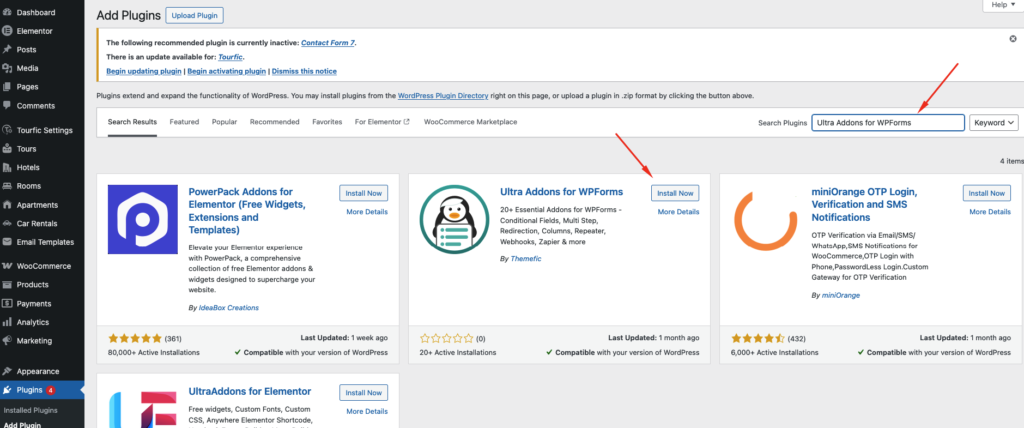
- Log in to your WordPress dashboard.
- Go to Plugins → Add New.
- Upload the Ultra Addons for WPForms plugin.
- Click Install Now and then Activate.
Step 2: Enable Address Field Feature #
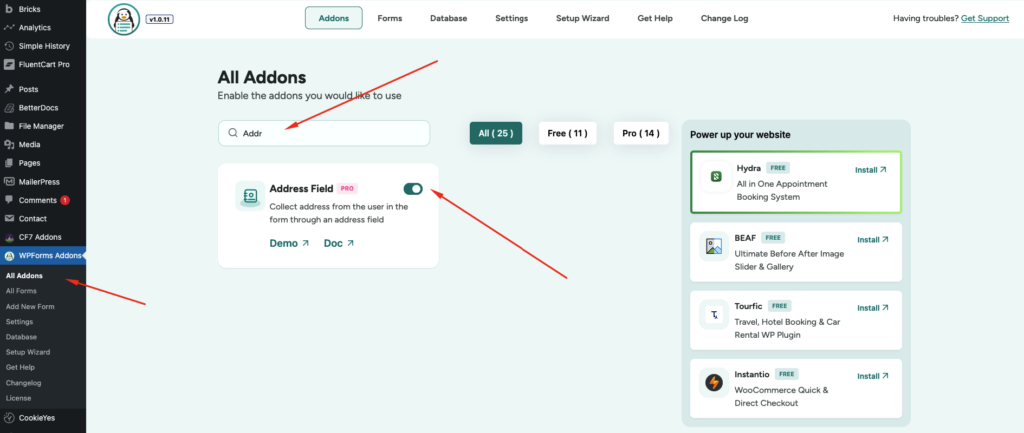
- Navigate to Ultra Addons → Addons.
- Find Address Field (Pro Feature).
- Click Enable.
3. Adding the Address Field #
Steps:
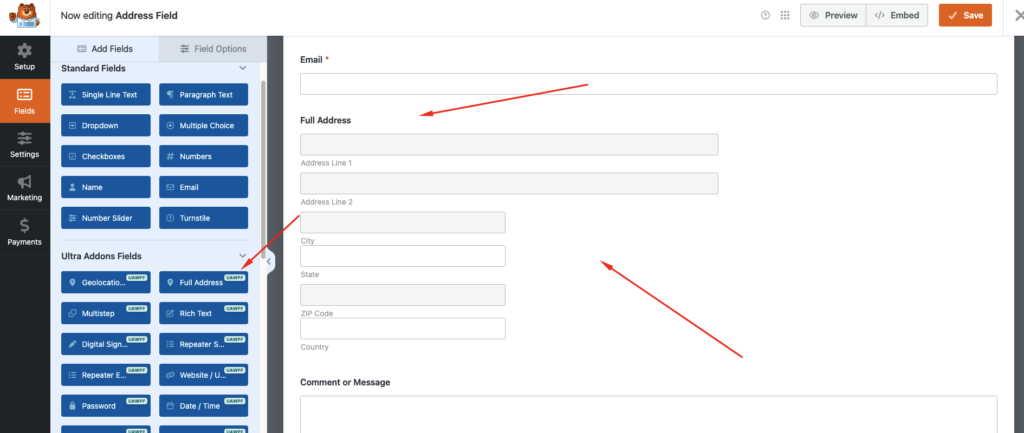
- Open WPForms → Form Builder.
- Drag the Address Field from the Standard Fields section into your form.
- Place it in the desired position.
4. Field Options #
Click on the Address Field to open Field Options:
- Label: Set a clear field name (e.g., “Shipping Address”).
- Description: Add hints or instructions for the user.
- Required Field: Make it mandatory.
- Placeholder Text: Show sample text in sub-fields (Street, City, ZIP, etc.).
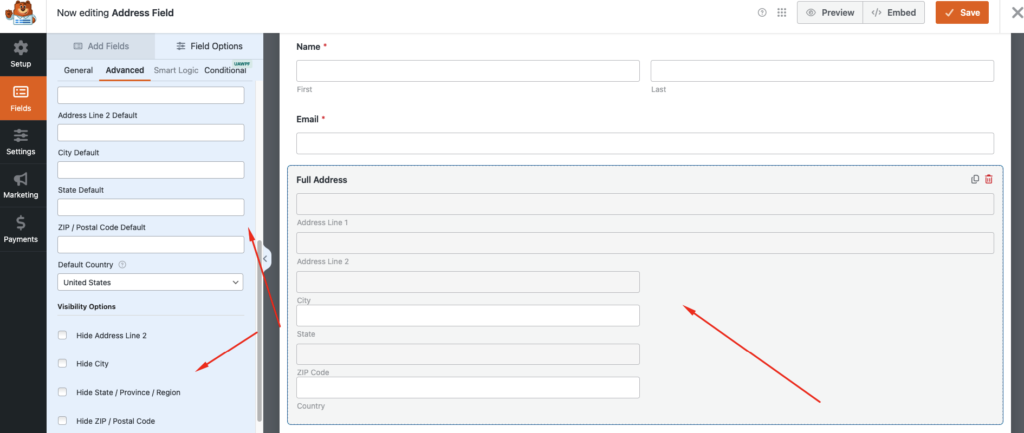
5. Customizing Address Formats #
WPForms allows multiple formats:
- US Format: Street, City, State, ZIP Code
- International Format: Street, City, Province/Region, Postal Code, Country
- Custom Format: Show or hide individual sub-fields.
6. Auto-Complete and Geolocation #
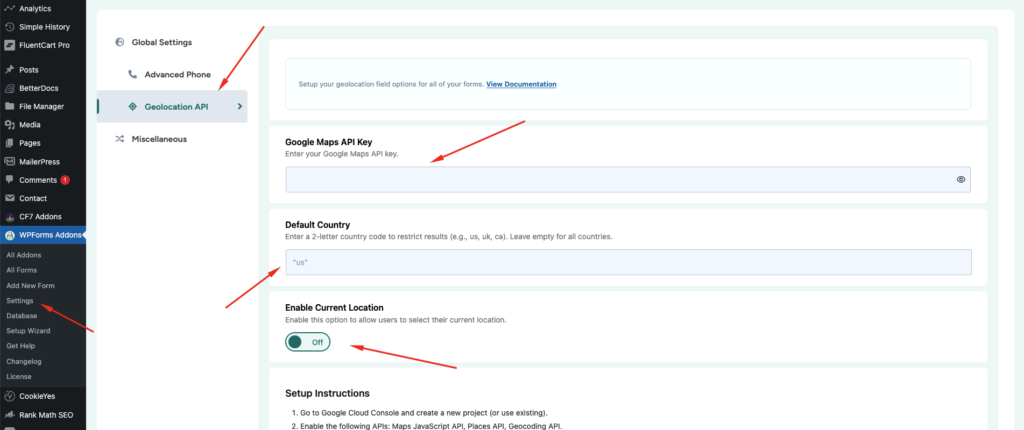
Steps to enable Google Maps Auto-Complete:
- Go to WPForms → Settings → Google Maps API Key.
- Enter your API key.
- In Address Field settings, enable Auto-Complete.
Users can now select addresses from suggestions, reducing errors and improving form completion.
7. Validating Address Entries #
To ensure accurate data:
- Enable Required Fields.
- Enable Smart Validation for proper address format.
- Optional: Use Conditional Logic to show/hide fields based on other selections.
8. Integration with Email & CRM #
You can automatically send submitted addresses to your email notifications or connected services:
- Email Notifications: Include addresses in submission emails.
- CRM Integration: Connect to Mailchimp, HubSpot, Salesforce, or AWeber.
- Automation: Use Zapier to send addresses to spreadsheets or delivery apps.
9. Advanced Tips #
- Conditional Logic: Show fields only for certain countries.
- Multiple Addresses: Use repeater fields (with addons) to collect multiple addresses.
- Formatting in Notifications: Customize address display with
{field_id}tags. - Mobile Optimization: Address fields are fully responsive.