
Quick Video #
This guide provides step-by-step instructions on how to connect your WordPress forms (created with WPForms) to Brevo (formerly Sendinblue) using the Ultra Addons for WPForms plugin. This integration allows you to automatically send form submissions directly to your Brevo contact lists.
Step 1: Activate the Brevo Addon #
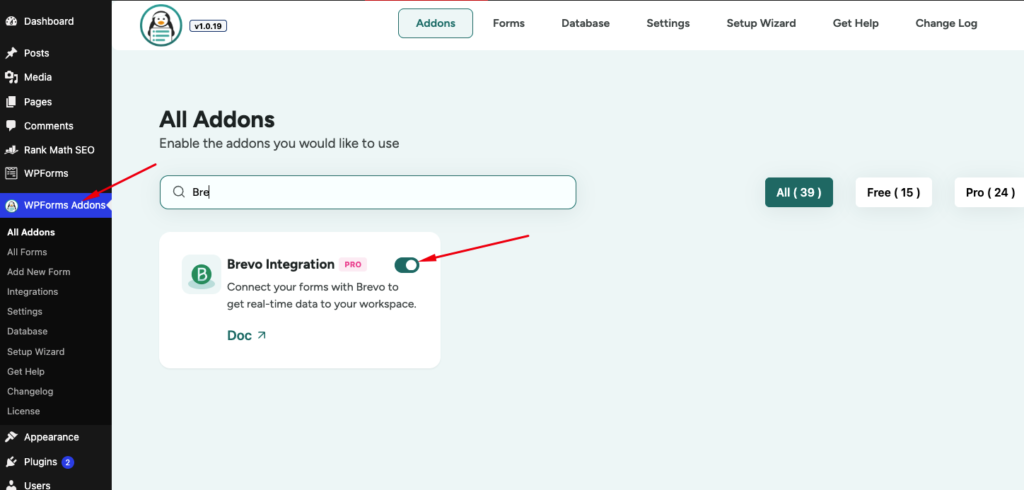
To use Brevo with WPForms, you first need to enable the Brevo Addon in your WordPress dashboard.
- Navigate to your WordPress dashboard.
- Go to WPForms Addons > All Addons in the left sidebar menu.
- Use the search bar to search for Brevo.
- Once located, click the Activate (or Enable) button for the Brevo Addon.
Step 2: Generate Your Brevo API Key #
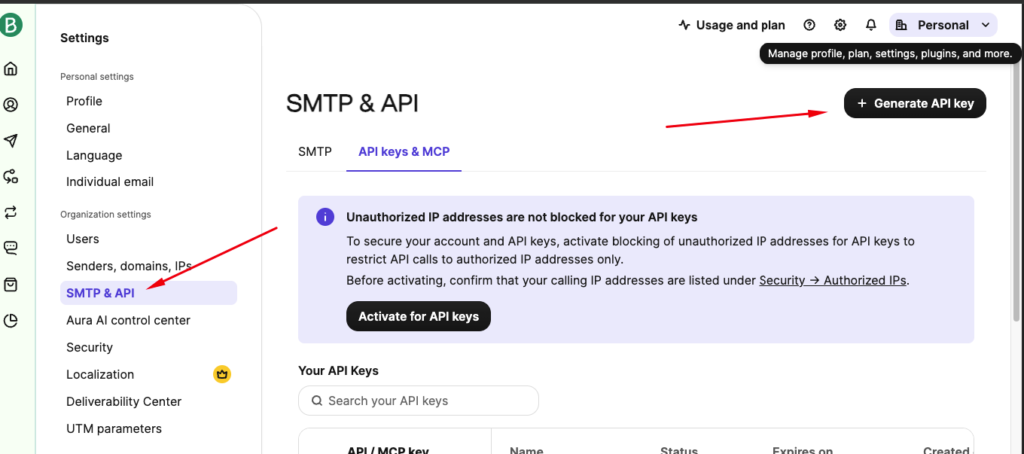
To securely connect WordPress to Brevo, you need to generate an API key from your Brevo account.
- Log in to your Brevo Dashboard.
- Click on your Profile Name in the top-right corner of the screen.
- Select SMTP & API from the drop-down menu.
- Navigate to the API Keys tab.
- Click the Generate a new API key button.
- Give the API key a descriptive name (e.g.,
WPForms Integration) and click Generate. - Copy the generated API key immediately.
WARNING: For security reasons, Brevo will only display this API key once. Make sure to copy it and save it in a safe place before closing the window.
Step 3: Configure Brevo Settings in WPForms #
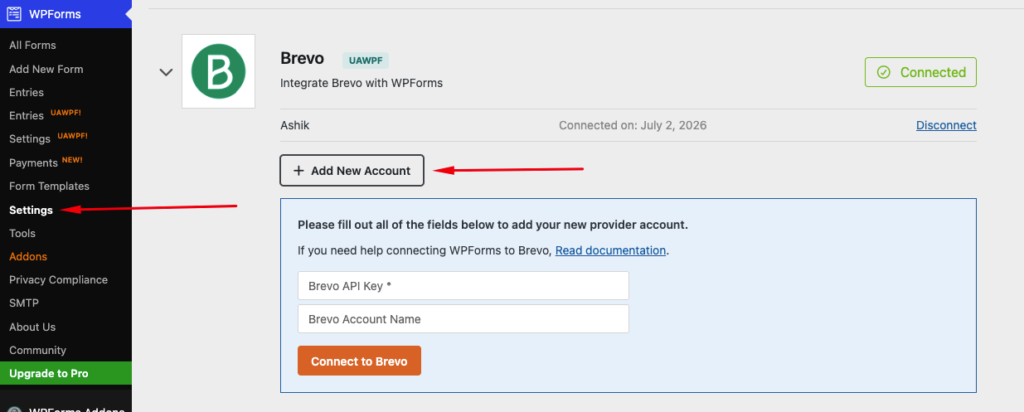
Next, add your API key to WPForms to establish the global connection.
- Go back to your WordPress dashboard.
- Navigate to WPForms > Settings.
- Click on the Integrations tab at the top of the page.
- Find Brevo in the list of available integrations and click to expand its settings.
- Enter a friendly name in the Account Name field (this helps you identify the account if you connect multiple Brevo accounts).
- Paste your copied Brevo API key into the Brevo API Key field.
- Click the Add New Account or Connect button, then click Save Settings.
Step 4: Connect Brevo to a Specific Form #
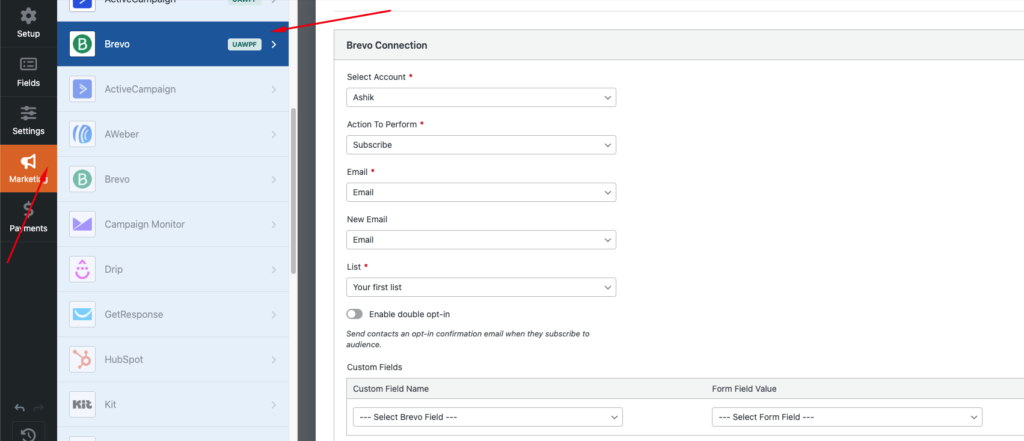
Once the global connection is established, you can map individual forms to send subscriber details to Brevo.
- Navigate to WPForms > All Forms and select the form you want to connect (or create a new contact form).
- Inside the WPForms builder, go to Marketing > Brevo from the left panel.
- Click the Add New Connection button.
- Enter a name for the connection (e.g.,
Newsletter Signup) and click OK. - Configure your connection settings:
- Select Account: Choose the account name you set up in Step 3.
- Action to Perform: Choose the action (typically Add/Update Contact).
- Select List: Choose the Brevo email list where contacts should be added.
- Fields Mapping: Map your form fields (such as Email, First Name, Last Name) to the corresponding fields in Brevo.
- Click Save in the top-right corner of the builder to save your form settings.
TIP: Map your fields accurately! At minimum, you must map the Email field. Other optional fields like First Name, Last Name, and Phone Number help personalize your marketing emails.
Troubleshooting & Support #
Lists Not Showing: If your Brevo lists are not appearing in the form builder dropdown, try clearing your WordPress cache or reconnecting your API key in WPForms > Settings > Integrations.
API Key Errors: If the integration fails to connect, double-check that you copied the complete API key without any trailing spaces.
Authorized IPs Block: In some cases, Brevo accounts have API security restrictions configured. If you are using Brevo’s Authorized IPs feature (found under SMTP & API > Authorized IPs), make sure your website’s server IP address is added to the allowed list. If your server IP is not authorized, Brevo will reject the API requests from WPForms.
