
- Check the Quick Video
- Overview
- Requirements
- Step 1: Install Ultra Addons for WPForms
- Global Salesforce Settings
- Salesforce Account Connection
- Authorization Process
- Setup Instructions
- Salesforce Form Integration Settings
- Connection Settings
- Connection Name
- Select Salesforce Account
- Action to Perform
- Field Mapping
- Conditional Logic
- Viewing Salesforce Data
Check the Quick Video #
Overview #
The Salesforce Integration Addon connects your forms with your CRM so that every form submission can automatically create or update records in Salesforce.
This integration works seamlessly with WPForms, allowing you to send form data directly to your CRM without manual copying or exporting.
With this feature you can:
- Automatically send form submissions to Salesforce
- Create new leads or contacts instantly
- Map form fields to Salesforce CRM fields
- Automate lead management workflows
- Reduce manual data entry errors
- Keep your CRM data organized and up to date
Requirements #
Before using the Salesforce Integration feature, make sure you have:
- WordPress installed
- WPForms installed and activated
- Ultra Addons for WPForms installed
- Salesforce Integration feature enabled
- An active Pro license
- A valid Salesforce account
Step 1: Install Ultra Addons for WPForms #
- Log in to your WordPress dashboard.
- Go to Plugins → Add New.
- Upload the Ultra Addons for WPForms plugin.
- Click Install Now and then Activate.
Once activated, the Salesforce Integration feature will be available inside your WPForms settings.
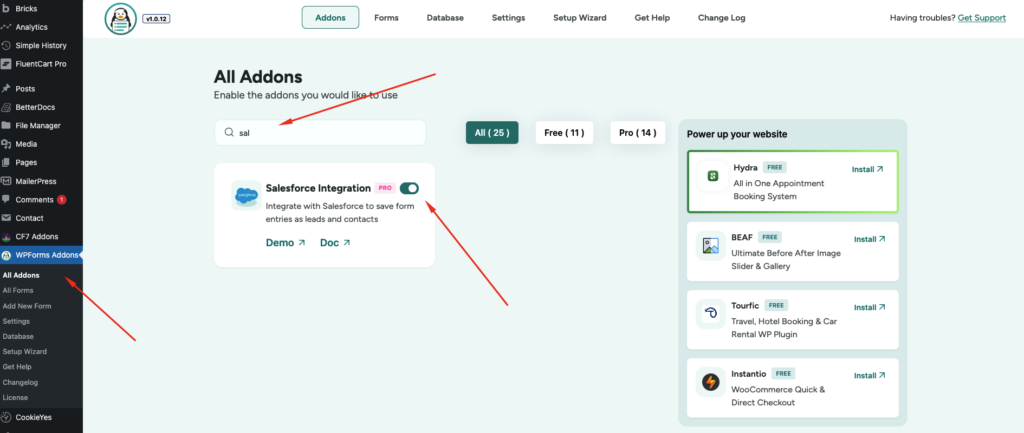
Global Salesforce Settings #
Before using Salesforce inside your forms, you need to connect your Salesforce account from the global settings.
To configure the Salesforce integration: #
- Go to WPForms → Settings
- Click the Integrations tab
- Select Salesforce Integration
- Click Add New Account
Salesforce Account Connection #
This option allows you to connect your Salesforce account to your WordPress website.
Once connected, the integration can send form submissions directly to your CRM.
Authorization Process #
When you click Add New Account, you will be redirected to the Salesforce login page.
Steps:
- Log in to your Salesforce account
- Allow access to your WordPress site
- Confirm the connection
After authorization, your Salesforce account will appear in the integrations list.
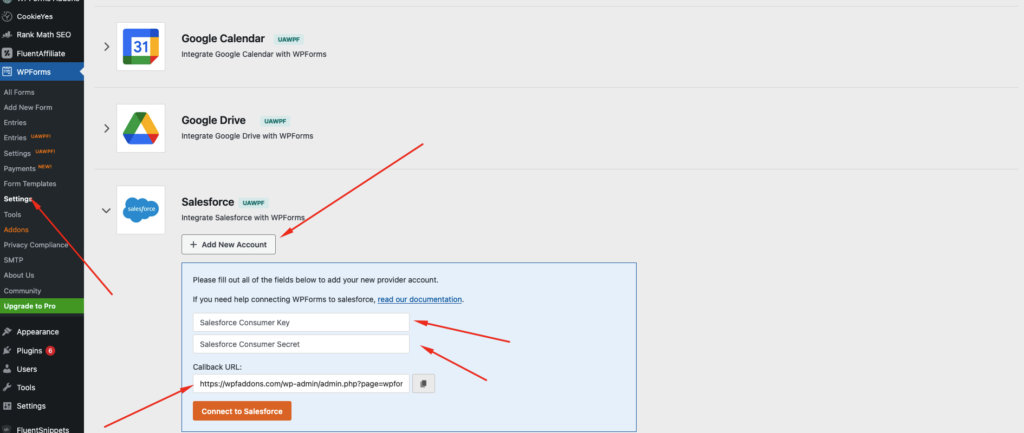
Setup Instructions #
Follow these steps to properly connect Salesforce with your forms.
Step 1
Log in to your WordPress dashboard.
Step 2
Navigate to:
WPForms → Settings → Integrations
Step 3
Select Salesforce Integration.
Step 4
Click Add New Account.
Step 5
Log in to your Salesforce account and approve access.
Step 6
After authorization, the account will appear in the integration list.
Salesforce Form Integration Settings #
After connecting your account, you can add Salesforce integration to any form.
To configure Salesforce inside a form: #
- Go to WPForms → All Forms
- Create a new form or edit an existing one
- Open the Marketing tab
- Select Salesforce
- Click Add New Connection
📸 Screenshot Placement
Insert a screenshot showing the Salesforce connection panel inside the form builder.
Connection Settings #
When adding a new Salesforce connection to a form, you will see several configuration options.
Connection Name #
Enter a nickname for your connection.
Example:
Website Lead Form
This helps identify the connection if you use multiple integrations.
Select Salesforce Account #
Choose the Salesforce account you connected earlier from the dropdown list.
Action to Perform #
Choose what should happen when a form is submitted.
Common options include:
- Create Lead
- Create Contact
- Create Custom Object Record
This determines how the data will be stored inside Salesforce.
Field Mapping #
Field mapping allows you to connect your form fields with Salesforce CRM fields.
Example mapping:
| WPForms Field | Salesforce Field |
|---|---|
| Name | Lead Name |
| Phone | Phone |
| Company | Company Name |
This ensures your form data is correctly stored inside your CRM.
📸 Screenshot Placement
Add a screenshot here showing the field mapping settings.
Conditional Logic #
You can control when form data should be sent to Salesforce using conditional logic.
Example:
Send data only if:
- User selects Sales Inquiry
- User requests Product Demo
This helps prevent unnecessary records from being created.
📸 Screenshot Placement
Insert a screenshot showing conditional logic configuration.
Viewing Salesforce Data #
After a form is submitted:
- Log in to your Salesforce dashboard
- Go to Leads or Contacts
- Find the record created from the form submission
All mapped form fields will appear inside the Salesforce record.
