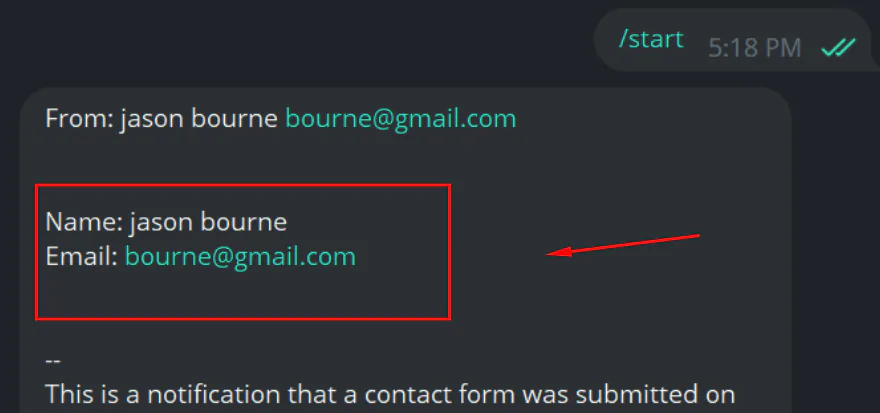
In this article, we will try to explain WPForms Telegram Integration with the help of our Free Addon Called “WPForms to Telegram”.
What’s needed #
- Ensure both WPForms and Ultra Addons for WPForms are installed on your WordPress site.
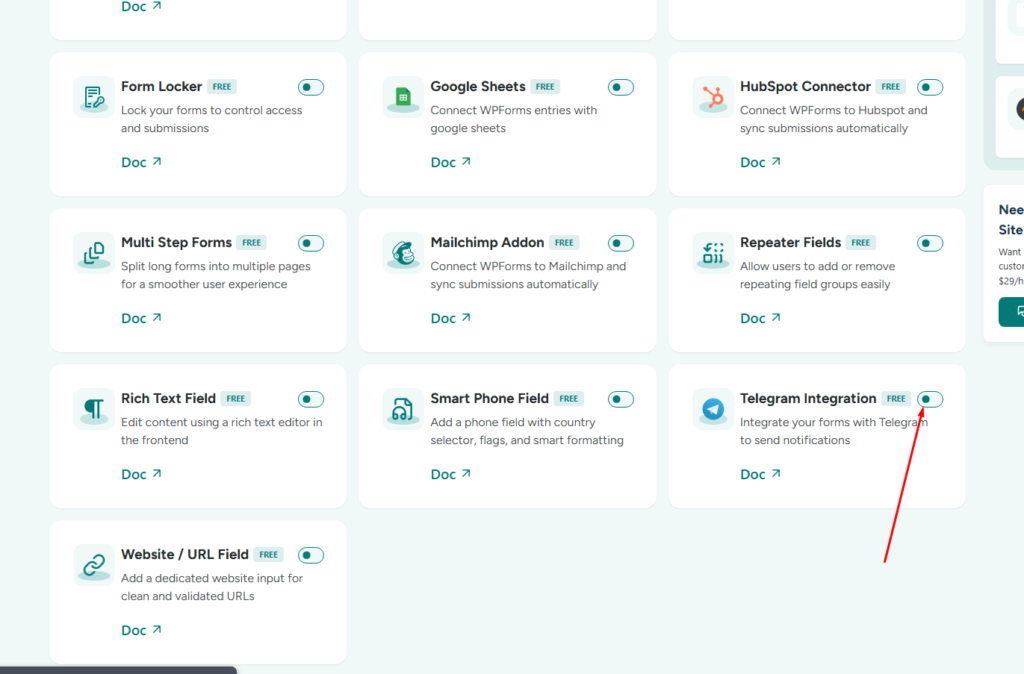
- Go to WPForms Addons -> All Addons menu in your WordPress Dashboard and enable the Telegram Integration checkbox/toggle.
WPForms to Telegram Sumission – Step by Step Guide #
First of all, go to WPForms -> Add New in your WordPress Dashboard to create a new form. But before moving further, you need to get two information from Telegram: Telegram BOT Token & Telegram CHAT ID.
Step 1: Creating a Bot with BotFather #
BotFather is a bot created by Telegram that you can use to create and manage bots of your own. To use it, visit your Telegram account, search for BotFather, and tap on the result or you can just click here. Then, do the following 4 steps:
1. Once inside, you’ll find a Start button to initiate the bot API. It will show you a list of available commands. In this case, we want to create a new bot, which is done with the /newbot command.
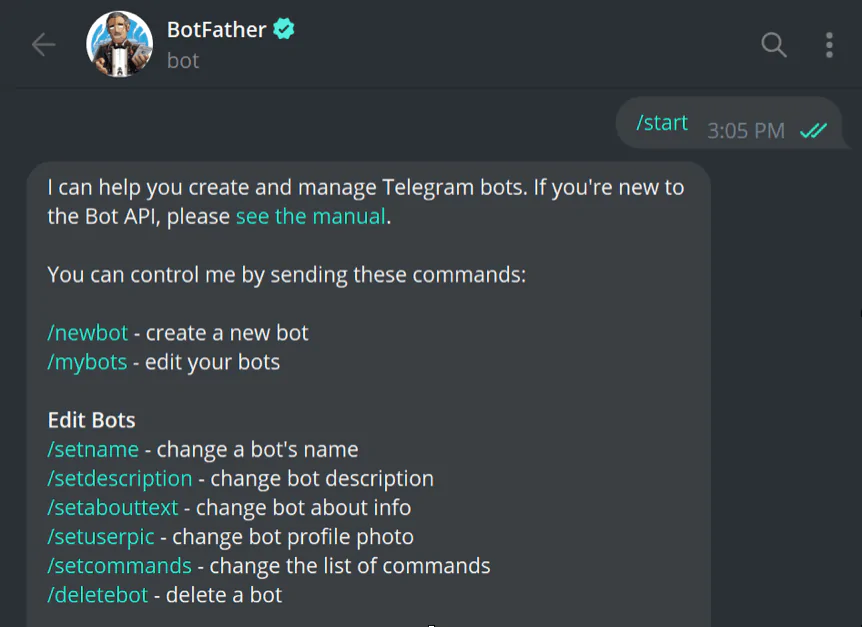
2. After you click the command or type and send it, the interface will ask you to create a name for your bot. This name isn’t the bot’s unique identifier, so feel free to choose whatever you want.

3. Next, you’ll have to configure a username. Note that this element has to be unique, as it acts as the identifier for the bot. Additionally, the username requires the suffix bot. It can be upper or lower case or include an underscore, but has to end with the suffix bot.
4. Once you enter the username, the reply will include a unique token that you’ll have to use to access the API.
Step 2: Getting the User / Chat ID #
Another element that we need is the user ID. You can find your unique user ID through another Telegram bot named userinfobot. Search for userinfobot on Telegram (or click here), and click the Start button to initiate the bot. It should send you a message consisting of your user ID, among other things.

Step 3: Settings Panel Setup #
Now that we have both the information, let’s do our WPForms setting panel setup. In the form editing panel, if you go to WPForms > Settings > Telegram.
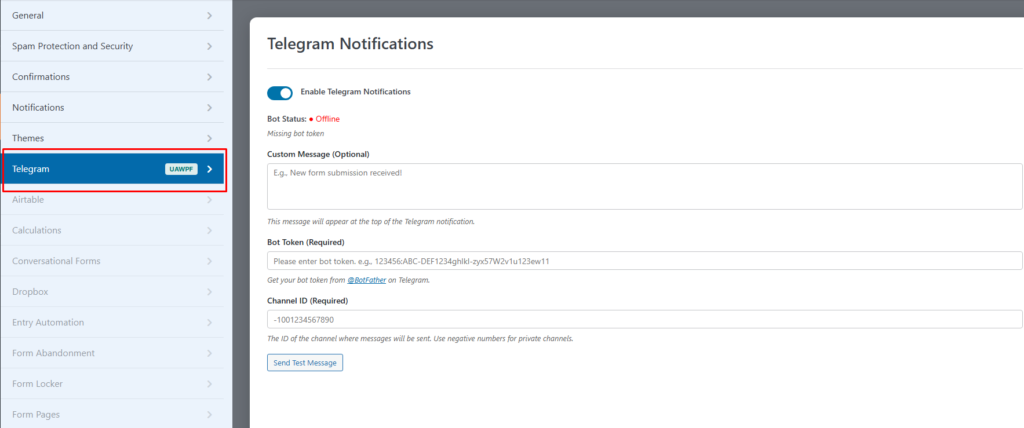
- In this tab, first check the Enable Telegram Notifications box. Next, paste the Bot Token and Telegram Chat ID that you created in the Telegram bots in the two fields, respectively. Then hit “Save”.
- Once you hit save, if the information is correct, the token and ID have been verified, you’ll see a confirmation text showing Bot is Online, along with the Bot Name and Username that you created.
Step 4: Add Other Fields #
Once you are done adding your telegram setup, you can add your remaining form fields (based on your needs). For example, name, email, address, and so on.
Testing the Telegram Integration with WPForms #
Now, whenever a user submits the form from the front end, their data will be automatically sent to your Telegram ID.