
Quick Video #
Overview #
The Zoho CRM Integration Addon allows you to automatically send form submissions from your WordPress website directly to your Zoho CRM account. Instead of manually transferring data between your forms and CRM, the addon automatically creates and updates records whenever a form is submitted.
This integration helps businesses streamline lead management, improve customer tracking, and automate sales workflows.
With this feature, you can:
- Automatically create leads in Zoho CRM
- Create contacts from form submissions
- Map WPForms fields to Zoho CRM fields
- Send data to different Zoho CRM modules
- Use conditional logic for advanced automation
- Eliminate manual data entry and reduce errors
Requirements #
Before using the Zoho CRM Integration, make sure you have:
- WordPress installed
- WPForms plugin installed and activated
- Ultra Addons for WPForms installed
- Zoho CRM Integration Addon enabled
- An active Zoho CRM account
- A valid Zoho API connection
Step 1: Connect Your Zoho CRM Account #
Before sending data to Zoho CRM, you need to connect your account.
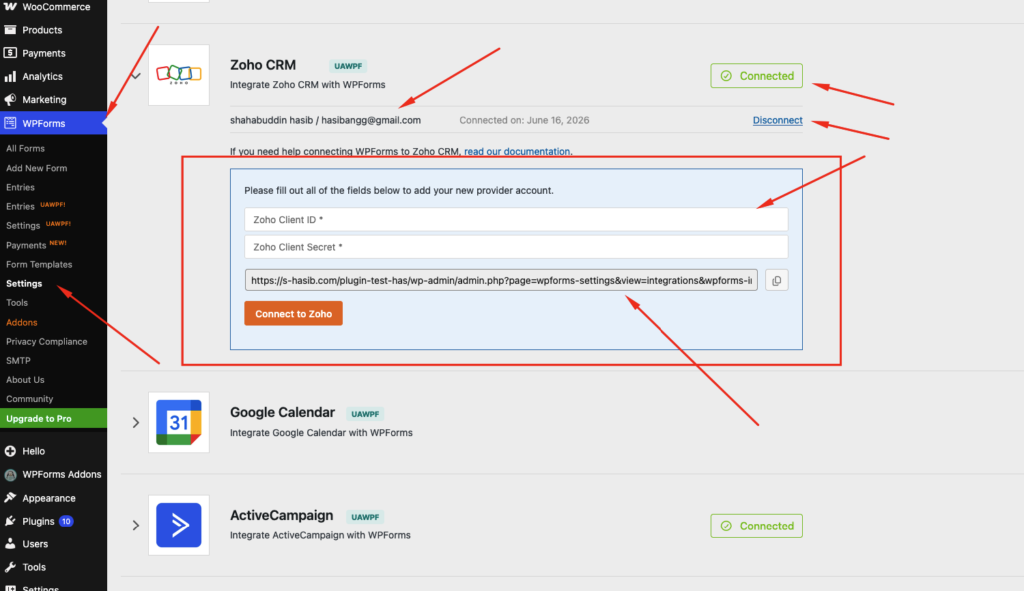
- Navigate to WPForms → Settings → Integrations.
- Locate Zoho CRM Integration.
- Click Add New Account.
Configure Zoho API Credentials #
You will need credentials from your Zoho Developer Console.
Create an Application #
- Log in to your Zoho Developer Console.
- Create a new application.
- Select Server-Based Application.
- Enter your application details.
Obtain Credentials #
After creating the application, copy the following:
- Client ID
- Client Secret
You will use these credentials inside the integration settings.
Add Redirect URI #
Inside your Zoho application, add the following Redirect URI:
https://yourwebsite.com/wp-admin/admin.php?page=wpforms-settings&view=integrationsReplace yourwebsite.com with your actual domain.
Connect Zoho CRM #
- Enter your Client ID.
- Enter your Client Secret.
- Click Connect Account.
- Log in to your Zoho CRM account.
- Authorize the application.
Once connected, your Zoho CRM account will appear in the integrations list.
Step 2: Create or Edit a Form #
- Navigate to WPForms → All Forms.
- Create a new form or edit an existing form.
- Add the fields you want to send to Zoho CRM.
Common fields include:
- Name
- Phone Number
- Company
- Message
- Address
Step 3: Configure Zoho CRM Integration #
While editing your form:
- Go to Marketing → Zoho CRM.
- Click Add New Connection.
- Enter a connection nickname.
📸 Screenshot Placement
Add a screenshot showing the connection creation screen.
Select Account #
Choose the Zoho CRM account connected earlier.
Select Module #
Choose which Zoho CRM module should receive the form submission.
Common modules include:
- Leads
- Contacts
- Accounts
- Deals
- Custom Modules
📸 Screenshot Placement
Add a screenshot showing module selection.
Field Mapping #
Map your WPForms fields to Zoho CRM fields.
Example:
| WPForms Field | Zoho CRM Field |
|---|---|
| Name | Full Name |
| Phone | Phone |
| Company | Company |
| Message | Description |
This ensures all form data is stored correctly within Zoho CRM.
📸 Screenshot Placement
Add a screenshot showing field mapping settings.
Conditional Logic #
Conditional Logic allows you to control when submissions should be sent to Zoho CRM.
Example #
Send data only when:
- User selects “Request a Demo”
- User chooses “Sales Inquiry”
To configure:
- Enable Conditional Logic.
- Create your rules.
- Save the form.
📸 Screenshot Placement
Add a screenshot showing conditional logic settings.
How the Integration Works #
- Visitor submits a form.
- WPForms processes the submission.
- Zoho CRM Integration validates the data.
- The addon sends data to Zoho CRM.
- A new Lead, Contact, or selected record is created automatically.
No manual exporting or importing is required.
